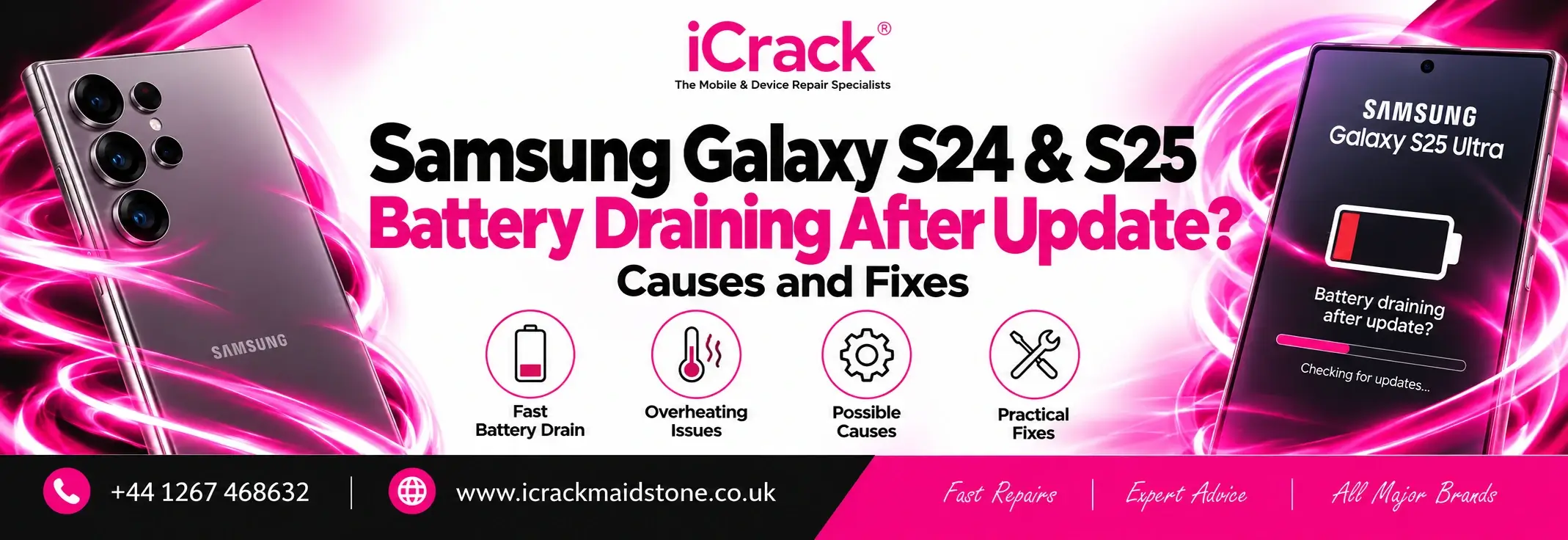
Has your Samsung Galaxy suddenly started losing battery faster than usual? You’re not the only one asking why.
Some Galaxy S24 and S25 owners have reported unusually fast battery drain and overheating following Samsung’s July 2026 software update. For people who rely on their phones throughout the day, needing an unexpected recharge can be frustrating.
Although software updates are designed to improve security and performance, occasional problems can affect battery usage.
If your Samsung phone has started behaving differently, here’s what you should check before considering a repair.
Why Is My Samsung Battery Draining After an Update?
Following the July 2026 update, some Galaxy users reported shorter battery life, increased temperatures and higher background battery consumption.
The complaints included Galaxy S24 and S25 models, particularly some Ultra devices.
However, this doesn’t mean every Samsung phone is affected or that the update is responsible for every battery problem.
Possible causes include:
- Background apps consuming excessive power
- Software compatibility issues
- Applications repeatedly syncing data
- Increased activity after an update
- Poor mobile network reception
- An ageing or damaged battery
Identifying the cause is important because a software-related problem doesn’t necessarily require hardware replacement.
1. Restart Your Samsung Galaxy
Sometimes, a simple restart can resolve temporary software glitches.
Restart your Galaxy phone and monitor its battery performance over the following day.
If an application was behaving unexpectedly in the background, restarting may help restore normal operation.
2. Check Which Apps Are Using Your Battery
One of the most useful troubleshooting steps is checking your battery usage.
Open Settings > Battery > Battery usage. The exact menu may vary depending on your Galaxy model and software version.
Look for applications consuming unusually large amounts of power.
Social media, navigation and messaging applications can sometimes remain active in the background.
If an app appears responsible, update it and review its background activity settings.
3. Install the Latest Software Updates
Samsung regularly releases software updates containing security improvements and bug fixes.
Go to Settings > Software update > Download and install to check for available updates.
Also update your applications through the Google Play Store and Galaxy Store.
A newer update may resolve certain software problems, although no particular update is guaranteed to fix battery drain.
4. Check Whether Your Phone Is Overheating
A Samsung Galaxy may become warm during gaming, video recording, navigation or charging.
However, excessive heat shouldn’t be ignored.
If your device becomes uncomfortably hot, stop demanding activities, disconnect the charger if appropriate and allow it to cool naturally.
Avoid charging in direct sunlight or placing the phone under pillows.
If overheating continues during light usage, professional diagnostics may be necessary.
5. Review Battery Saving Settings
Samsung Galaxy phones include several features designed to improve battery efficiency.
You can try:
- Enabling Power saving mode
- Reducing screen brightness
- Shortening screen timeout
- Limiting unnecessary background activity
- Reviewing Always On Display settings
These adjustments may improve everyday battery life, particularly when you’re travelling or working away from a charger.
6. Run Samsung’s Built-In Diagnostics
The Samsung Members application offers diagnostic tools for checking certain device functions.
Open Samsung Members, locate the diagnostics section and check the available battery tests.
These tests can provide useful information, but they may not identify every battery or charging fault.
If your phone continues losing charge rapidly, a more detailed inspection may be worthwhile.
When Does Your Samsung Battery Need Replacing?
Not every battery problem is caused by software.
Smartphone batteries naturally lose capacity over time, and an older battery may struggle to provide reliable performance.
Warning signs include unexpected shutdowns, rapid percentage drops, repeated charging throughout the day and persistent charging difficulties.
If your phone has a swollen battery, stop using it and arrange professional assistance.
For persistent problems, a technician can help distinguish between battery wear, charging faults and software-related issues.
Samsung Phone Repair in Maidstone
If your Samsung Galaxy S24, S25 or another Android device continues experiencing battery or charging problems, iCrack Maidstone can help.
Our technicians provide diagnostic assessments and repair services for Samsung Galaxy smartphones, including battery replacement, charging port problems and screen damage.
We recommend identifying the fault before replacing components unnecessarily.
Visit iCrack Maidstone, 9 Fremlin Walk, Maidstone ME14 1QG, or contact our team for advice about your device.
Final Thoughts
Unexpected battery drain after a Samsung software update can be inconvenient, but it doesn’t automatically mean your phone needs replacing.
Start by checking battery usage, updating applications and reviewing background activity.
If the problem continues, professional Samsung phone repair in Maidstone can help identify whether you’re dealing with a software issue or a worn battery.
Also Visit: iPhone Battery Replacement Maidstone