
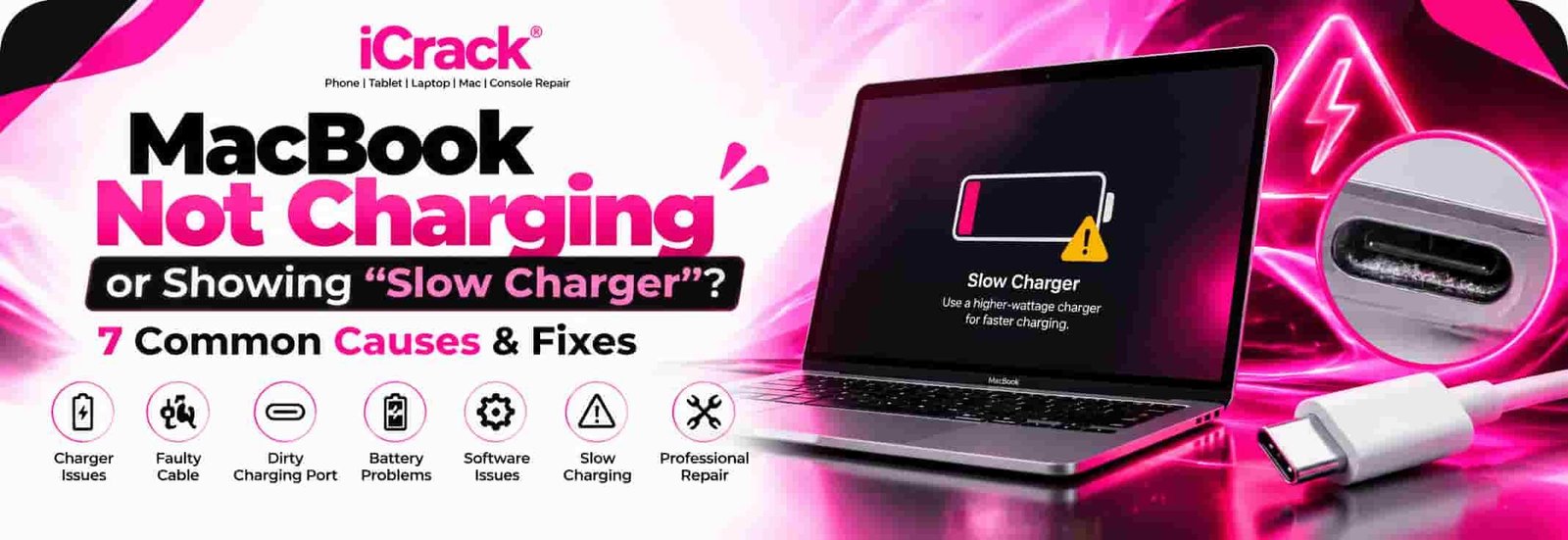
MacBook Not Charging Maidstone | 7 Fixes (2026)
You plug in your MacBook, expecting the battery percentage to rise, but nothing happens. Perhaps it charges painfully slowly, stops at 80%, or displays a “Slow Charger” warning. Whatever the problem, a MacBook that won’t charge properly can quickly disrupt your working day.
If you’re experiencing MacBook charging problems and looking for MacBook repair in Maidstone, don’t assume you need an expensive replacement. Sometimes the cause is surprisingly simple, while other faults require professional attention.
Here are seven things worth checking before booking a repair.
1. Check Your MacBook Charger and Cable
Before worrying about internal damage, start with your charging equipment.
A damaged USB-C cable, faulty power adapter or loose connection can prevent your MacBook from charging. Even if the cable looks fine externally, internal damage may affect its performance.
Try another compatible charger and charging cable, preferably ones you know are working.
Also, check whether your adapter provides enough power. A charger designed for a phone may not deliver sufficient wattage for your MacBook, particularly during demanding tasks.
2. Understand the New “Slow Charger” Warning
One useful feature introduced with macOS Tahoe 26.4 is the “Slow Charger” notification.
If your MacBook detects that the connected charging equipment isn’t providing enough power, it can display this warning in the battery menu.
This doesn’t necessarily mean your battery is damaged.
For example, you might be using an underpowered USB-C adapter, an unsuitable cable or a monitor that provides insufficient charging power.
Check your MacBook model’s recommended wattage before purchasing a replacement charger at iCrack Maidstone.
3. Inspect the USB-C or MagSafe Charging Port
Dust, pocket lint and everyday debris can collect inside charging ports over time.
This may prevent the connector from making proper contact.
Look carefully for visible dirt or damage around the port. Avoid inserting metal tools or sharp objects, as these can damage the delicate internal connections.
If your MacBook only charges when the cable is held at a particular angle, the port or cable may be damaged.
A technician can inspect the connection and determine whether cleaning or component replacement is necessary.
4. Restart Your MacBook and Check for Updates
Sometimes, charging problems are related to software rather than hardware.
Restart your MacBook and reconnect the charger.
If the laptop turns on normally, open System Settings → General → Software Update to check for available updates.
Software and firmware updates can occasionally resolve communication problems between the MacBook and its charging equipment.
If you’re using an older Intel-based MacBook, an SMC reset may also help with certain power-related issues. The correct procedure depends on your model.
5. Check Whether Charging Stops at 80%
A MacBook stopping at 80% doesn’t automatically indicate a faulty battery.
Apple’s Optimised Battery Charging feature can temporarily delay charging beyond 80% to help reduce battery ageing.
Some MacBooks also support a configurable charging limit.
Check your Battery settings before assuming something is wrong.
However, if your MacBook repeatedly shuts down unexpectedly, drains unusually quickly or displays a battery service warning, further investigation may be necessary.
6. Look for Signs of Battery Wear
Like smartphone batteries, MacBook batteries gradually lose capacity.
An ageing battery may struggle to hold a charge, run down faster than expected or require servicing.
You can check its condition through System Settings → Battery → Battery Health, where supported.
If the status shows “Service Recommended”, consider arranging a professional battery assessment.
Don’t attempt to open a MacBook with a swollen battery. Stop using it and seek professional assistance.
7. Consider a Hardware Fault
If you’ve tested compatible charging equipment and checked the software, the problem could involve internal hardware.
Possible causes include a damaged charging port, battery connector, charging circuitry or logic board.
Liquid damage can also create charging problems, sometimes appearing days after the original incident.
Professional diagnostics can help identify the faulty component before deciding whether a repair is worthwhile.
Where to Get MacBook Charging Repairs in Maidstone
If your MacBook Air or MacBook Pro still isn’t charging, visit iCrack Maidstone at 9 Fremlin Walk, Maidstone ME14 1QG.
Our team can assess charging problems, battery faults and other MacBook issues, explain the available repair options and provide a quote before proceeding.
Walk-ins are welcome, so you can bring your device in without booking an appointment.
Also Visit: Laptop Overheating and Fan Making Noise
Final Thoughts
A MacBook charging problem doesn’t always mean a major repair bill. A different cable, suitable adapter or battery setting might solve the issue.
But if your MacBook repeatedly disconnects, refuses to charge or shows signs of physical damage, getting it checked early may prevent further problems.
For MacBook repair in Maidstone, visit iCrack Maidstone for practical advice and professional diagnostics.